
714 lines
36 KiB
Markdown
714 lines
36 KiB
Markdown
<h1 align="center"><img width=32px src="https://i.ibb.co/5KpSCNv/win11.png"> Awesome Win11 (<a href="https://github.com/awesome-windows11/windows11/releases/tag/3.8.4">v3.8.4</a>) [1000 STARS!] </h1>
|
||
|
||
<h3 align="center"> <a href="https://github.com/awesome-windows11/windows11/blob/main/README.md"> <img width=25px src="https://siteicon.vercel.app/icon/terminal.png"> Tweaks</a> | <a href="https://github.com/awesome-windows11/windows11/tree/main/apps"> <img width=25px src="https://siteicon.vercel.app/icon/settings.png"> Apps</a> | <a href="https://github.com/awesome-windows11/windows11/tree/main/faq"> ❓ FAQ</a> | <a href="https://github.com/awesome-windows11/windows11/tree/main/iso"> <img width=25px src="https://siteicon.vercel.app/icon/disk.ico"> ISO</a></h3>
|
||
|
||
First help for setup, tweaks and ISO images
|
||
|
||
Our mission is to show that it is possible to configure Windows without using third-party programs, just learn a few simple tweakers.
|
||
<br>This way you can forget about extraneous cleaning tools with closed source code. All our scripts are written in the standard "PS1" language and you can always check them or change them to suit your needs.
|
||
<br>
|
||
No files or programs, just console and commands!
|
||
|
||
> MORE PROJECTS: https://github.com/awesome-windows11
|
||
> <br>
|
||
> Site: https://windows12.glitch.me
|
||
> <br>
|
||
> VK: https://vk.com/flighthub
|
||
> <br>
|
||
> Telegram: https://t.me/windows11_chat
|
||
|
||
<h3 align="center"><img width=20px src="https://i.ibb.co/jDhhyDF/mark.png"> Important</h3>
|
||
|
||
Check system file: https://winbindex.m417z.com
|
||
<br>
|
||
<img width=20px src="https://i.ibb.co/M6ZdQqL/terminal.png"> NT/SYSTEM console: https://github.com/gerardog/gsudo
|
||
<br>
|
||
<img width=20px src="https://i.ibb.co/1XW0LcH/AppInstaller.png"> AppInstaller & MSIXbundle (WinGet) https://apps.microsoft.com/store/detail/9NBLGGH4NNS1
|
||
<br>
|
||
<img width=20px src="https://i.ibb.co/X3951pZ/Face.png"> Microsoft Emoji: https://github.com/microsoft/fluentui-emoji
|
||
<br>
|
||
https://github.com/farag2/Utilities
|
||
|
||
[HACK: Password Brute Force](https://github.com/InfosecMatter/Minimalistic-offensive-security-tools)
|
||
|
||
<h3 align="center"><img width=25px src="https://i.ibb.co/YpmKpwn/defender.png"></img> Windows Defender</h3>
|
||
|
||
[Defender Control](https://www.sordum.org/files/downloads.php?st-defender-control)
|
||
<br>
|
||
https://github.com/swagkarna/Defeat-Defender-V1.2
|
||
<br>
|
||
https://github.com/AndyFul/ConfigureDefender
|
||
<br>
|
||
https://github.com/simeononsecurity/Windows-Defender-Hardening
|
||
<br>
|
||
https://github.com/simeononsecurity/Windows-Defender-Application-Control-Hardening
|
||
|
||
<h3 align="center"><img width=25px src="https://site-iota-coral.vercel.app/icon/update.png"></img> Windows Update</h3>
|
||
|
||
https://github.com/DavidXanatos/wumgr
|
||
<br>
|
||
https://github.com/WereDev/Wu10Man
|
||
|
||
<h3 align="center"><img width=25px src="https://site-iota-coral.vercel.app/icon/store.png"> Microsoft Store Apps</h3>
|
||
|
||
https://github.com/Digressive/Remove-MS-Store-Apps
|
||
<br>
|
||
https://github.com/Sycnex/Windows10Debloater
|
||
<br>
|
||
https://github.com/Fs00/Win10BloatRemover
|
||
<br>
|
||
https://github.com/equk/windows
|
||
<br>
|
||
https://github.com/r33int/Windows10-Postinstall
|
||
<br>
|
||
https://github.com/simeononsecurity/Windows-Optimize-Harden-Debloat
|
||
<br>
|
||
https://github.com/simeononsecurity/Windows-Optimize-Debloat
|
||
<br>
|
||
https://github.com/ChrisTitusTech/winutil
|
||
|
||
|
||
<h3 align="center">🛠 Tweaks (Win11)</h3>
|
||
|
||
Custom Context Menu: https://github.com/ikas-mc/ContextMenuForWindows11
|
||
<br>
|
||
Windows Fixer: https://github.com/99natmar99/Windows-11-Fixer
|
||
<br>
|
||
Explorer Patcher (Old TaskBar): https://github.com/valinet/ExplorerPatcher
|
||
<br>
|
||
https://github.com/undergroundwires/privacy.sexy
|
||
<br>
|
||
https://github.com/mikeroyal/Windows-11-Guide
|
||
<br>
|
||
https://github.com/xanderfrangos/twinkle-tray
|
||
<br>
|
||
Manager context menu: https://nilesoft.org
|
||
<br>
|
||
<br>
|
||
☠ OUTDATED! Drag And Drop To Taskbar Fix: https://github.com/HerMajestyDrMona/Windows11DragAndDropToTaskbarFix
|
||
<br>
|
||
☠ OUTDATED! Windows Thumbnail Generator Folder: https://github.com/hahagu/WindowsThumbnailGenerator
|
||
<br>
|
||
☠ OUTDATED! Old Start Menu: https://github.com/bbmaster123/10SM
|
||
|
||
<h3 align="center"><img width=20px src="https://cdn-icons-png.flaticon.com/128/7425/7425907.png"> Personalization</h3>
|
||
|
||
|
||
<details><summary><b><img width=20px src="https://raw.githubusercontent.com/awesome-windows11/site/main/icon/moon.png"> Set Dark Theme</b></summary>
|
||
|
||
```powershell
|
||
reg add "HKEY_CURRENT_USER\Software\Microsoft\Windows\CurrentVersion\Themes\Personalize" /v AppsUseLightTheme /t REG_DWORD /d 0 /f
|
||
reg add "HKEY_CURRENT_USER\Software\Microsoft\Windows\CurrentVersion\Themes\Personalize" /v SystemUsesLightTheme /t REG_DWORD /d 0 /f
|
||
reg add "HKEY_CURRENT_USER\Software\Microsoft\Windows\CurrentVersion\Themes\Personalize" /v EnableTransparency /t REG_DWORD /d 1 /f
|
||
pause
|
||
```
|
||
</details>
|
||
|
||
<details><summary><b><img width=20px src="https://steamuserimages-a.akamaihd.net/ugc/1809887800478745061/3ECDD5E87CF66532103B2A6991728155ACFEF2F8/?imw=512&imh=367&ima=fit&impolicy=Letterbox&imcolor=%23000000&letterbox=true"> Disable Change Wallpaper</b></summary>
|
||
|
||
```powershell
|
||
reg add "HKEY_CURRENT_USER\Software\Microsoft\Windows\CurrentVersion\Policies\ActiveDesktop" /v NoChangingWallPaper /t REG_DWORD /d 1 /f
|
||
reg add "HKEY_LOCAL_MACHINE\Software\Microsoft\Windows\CurrentVersion\Policies\ActiveDesktop" /v NoChangingWallPaper /t REG_DWORD /d 1 /f
|
||
pause
|
||
```
|
||
|
||
[Windows 11 обои скачать](https://filedn.eu/lFS6h5cBEsru02lgr5VwkTJ/Windows%2011%20Files/wallpaper/)
|
||
|
||
Стандартно обои хранятся по пути:
|
||
|
||
```
|
||
C:\Windows\Web
|
||
```
|
||
|
||

|
||
|
||
|
||
</details>
|
||
|
||
<details><summary><b><img width=20px src="https://www.xda-developers.com/files/2021/06/Windows-11_Wallpaper_img100-1024x576.jpg"> Disable LockScreen Spotlight</b></summary>
|
||
|
||
```powershell
|
||
reg add "HKEY_CURRENT_USER\SOFTWARE\Policies\Microsoft\Windows\CloudContent" /v DisableWindowsSpotlightWindowsWelcomeExperience /t REG_DWORD /d 1 /f
|
||
reg add "HKEY_LOCAL_MACHINE\SOFTWARE\Policies\Microsoft\Windows\Personalization" /v NoChangingLockScreen /t REG_DWORD /d 0 /f
|
||
reg add "HKEY_CURRENT_USER\SOFTWARE\Policies\Microsoft\Windows\CloudContent" /v DisableWindowsSpotlightFeatures /t REG_DWORD /d 1 /f
|
||
reg add "HKEY_CURRENT_USER\SOFTWARE\Policies\Microsoft\Windows\CloudContent" /v DisableWindowsSpotlightOnActionCenter /t REG_DWORD /d 1 /f
|
||
reg add "HKEY_CURRENT_USER\SOFTWARE\Policies\Microsoft\Windows\CloudContent" /v DisableWindowsSpotlightOnSettings /t REG_DWORD /d 1 /f
|
||
reg add "HKEY_CURRENT_USER\SOFTWARE\Policies\Microsoft\Windows\CloudContent" /v DisableThirdPartySuggestions /t REG_DWORD /d 1 /f
|
||
reg add "HKEY_CURRENT_USER\SOFTWARE\Policies\Microsoft\Windows\CloudContent" /v ConfigureWindowsSpotlight /t REG_DWORD /d 2 /f
|
||
reg add "HKEY_CURRENT_USER\SOFTWARE\Policies\Microsoft\Windows\CloudContent" /v IncludeEnterpriseSpotlight /t REG_DWORD /d 0 /f
|
||
reg add "HKEY_CURRENT_USER\SOFTWARE\Microsoft\Windows\CurrentVersion\ContentDeliveryManager" /v "RotatingLockScreenEnabled" /t REG_DWORD /d 0 /f
|
||
reg add "HKEY_CURRENT_USER\SOFTWARE\Microsoft\Windows\CurrentVersion\ContentDeliveryManager" /v "LRotatingLockScreenEnabled" /t REG_DWORD /d 0 /f
|
||
reg add "HKEY_CURRENT_USER\SOFTWARE\Microsoft\Windows\CurrentVersion\ContentDeliveryManager" /v "RotatingLockScreenOverlayEnabled" /t REG_DWORD /d 0 /f
|
||
pause
|
||
```
|
||
</details>
|
||
|
||
<details><summary><b><img width=20px src="https://site-iota-coral.vercel.app/icon/explorer.png"> Clean Explorer</b></summary>
|
||
|
||
Force File Explorer to open to This PC instead of Quick Access
|
||
|
||
```powershell
|
||
reg add "HKEY_CURRENT_USER\Software\Microsoft\Windows\CurrentVersion\Explorer\Advanced" /v LaunchTo /t REG_DWORD /d 1 /f
|
||
```
|
||
|
||
```powershell
|
||
echo 3D Objects
|
||
reg add "HKEY_LOCAL_MACHINE\SOFTWARE\Microsoft\Windows\CurrentVersion\Explorer\FolderDescriptions\{31C0DD25-9439-4F12-BF41-7FF4EDA38722}\PropertyBag" /v ThisPCPolicy /t REG_SZ /d Hide /f
|
||
reg add "HKEY_LOCAL_MACHINE\SOFTWARE\Wow6432Node\Microsoft\Windows\CurrentVersion\Explorer\FolderDescriptions\{31C0DD25-9439-4F12-BF41-7FF4EDA38722}\PropertyBag" /v ThisPCPolicy /t REG_SZ /d Hide /f
|
||
echo Videos
|
||
reg add "HKEY_LOCAL_MACHINE\SOFTWARE\Microsoft\Windows\CurrentVersion\Explorer\FolderDescriptions\{35286a68-3c57-41a1-bbb1-0eae73d76c95}\PropertyBag" /v ThisPCPolicy /t REG_SZ /d Hide /f
|
||
reg add "HKEY_LOCAL_MACHINE\SOFTWARE\Wow6432Node\Microsoft\Windows\CurrentVersion\Explorer\FolderDescriptions\{35286a68-3c57-41a1-bbb1-0eae73d76c95}\PropertyBag" /v ThisPCPolicy /t REG_SZ /d Hide /f
|
||
echo Documents
|
||
reg add "HKEY_LOCAL_MACHINE\SOFTWARE\Microsoft\Windows\CurrentVersion\Explorer\FolderDescriptions\{f42ee2d3-909f-4907-8871-4c22fc0bf756}\PropertyBag" /v ThisPCPolicy /t REG_SZ /d Hide /f
|
||
reg add "HKEY_LOCAL_MACHINE\SOFTWARE\Wow6432Node\Microsoft\Windows\CurrentVersion\Explorer\FolderDescriptions\{f42ee2d3-909f-4907-8871-4c22fc0bf756}\PropertyBag" /v ThisPCPolicy /t REG_SZ /d Hide /f
|
||
echo Downloads
|
||
reg add "HKEY_LOCAL_MACHINE\SOFTWARE\Microsoft\Windows\CurrentVersion\Explorer\FolderDescriptions\{7d83ee9b-2244-4e70-b1f5-5393042af1e4}\PropertyBag" /v ThisPCPolicy /t REG_SZ /d Hide /f
|
||
reg add "HKEY_LOCAL_MACHINE\SOFTWARE\Wow6432Node\Microsoft\Windows\CurrentVersion\Explorer\FolderDescriptions\{7d83ee9b-2244-4e70-b1f5-5393042af1e4}\PropertyBag" /v ThisPCPolicy /t REG_SZ /d Hide /f
|
||
echo Images
|
||
reg add "HKEY_LOCAL_MACHINE\SOFTWARE\Microsoft\Windows\CurrentVersion\Explorer\FolderDescriptions\{0ddd015d-b06c-45d5-8c4c-f59713854639}\PropertyBag" /v ThisPCPolicy /t REG_SZ /d Hide /f
|
||
reg add "HKEY_LOCAL_MACHINE\SOFTWARE\Wow6432Node\Microsoft\Windows\CurrentVersion\Explorer\FolderDescriptions\{0ddd015d-b06c-45d5-8c4c-f59713854639}\PropertyBag" /v ThisPCPolicy /t REG_SZ /d Hide /f
|
||
echo Music
|
||
reg add "HKEY_LOCAL_MACHINE\SOFTWARE\Microsoft\Windows\CurrentVersion\Explorer\FolderDescriptions\{a0c69a99-21c8-4671-8703-7934162fcf1d}\PropertyBag" /v ThisPCPolicy /t REG_SZ /d Hide /f
|
||
reg add "HKEY_LOCAL_MACHINE\SOFTWARE\Wow6432Node\Microsoft\Windows\CurrentVersion\Explorer\FolderDescriptions\{a0c69a99-21c8-4671-8703-7934162fcf1d}\PropertyBag" /v ThisPCPolicy /t REG_SZ /d Hide /f
|
||
echo Desktop
|
||
reg add "HKEY_LOCAL_MACHINE\SOFTWARE\Microsoft\Windows\CurrentVersion\Explorer\FolderDescriptions\{B4BFCC3A-DB2C-424C-B029-7FE99A87C641}\PropertyBag" /v ThisPCPolicy /t REG_SZ /d Hide /f
|
||
reg add "HKEY_LOCAL_MACHINE\SOFTWARE\Wow6432Node\Microsoft\Windows\CurrentVersion\Explorer\FolderDescriptions\{B4BFCC3A-DB2C-424C-B029-7FE99A87C641}\PropertyBag" /v ThisPCPolicy /t REG_SZ /d Hide /f
|
||
taskkill /F /IM explorer.exe
|
||
start explorer.exe
|
||
pause
|
||
```
|
||
</details>
|
||
|
||
<details><summary><b><img width=20px src="https://raw.githubusercontent.com/awesome-windows11/site/main/clean.png"> Clean Taskbar</b></summary>
|
||
|
||
Edit Taskbar:
|
||
```cmd
|
||
%UserProfile%\AppData\Roaming\Microsoft\Internet Explorer\Quick Launch\User Pinned\TaskBar
|
||
```
|
||
|
||
```powershell
|
||
echo "Disable Meet Now"
|
||
reg add "HKEY_CURRENT_USER\Software\Microsoft\Windows\CurrentVersion\Policies\Explorer" /v HideSCAMeetNow /t REG_DWORD /d 1 /f
|
||
reg add "HKEY_LOCAL_MACHINE\SOFTWARE\Microsoft\Windows\CurrentVersion\Policies\Explorer" /v HideSCAMeetNow /t REG_DWORD /d 1 /f
|
||
echo "Disable People"
|
||
reg add "HKEY_LOCAL_MACHINE\SOFTWARE\Policies\Microsoft\Windows\Explorer" /v HidePeopleBar /t REG_DWORD /d 1 /f
|
||
reg add "HKEY_CURRENT_USER\Software\Policies\Microsoft\Windows\Explorer" /v HidePeopleBar /t REG_DWORD /d 1 /f
|
||
echo "Hide People"
|
||
reg add "HKEY_LOCAL_MACHINE\SOFTWARE\Microsoft\Windows\CurrentVersion\Explorer\Advanced\People" /v PeopleBand /t REG_DWORD /d 0 /f
|
||
echo "Disable Weather, News and Interests on taskbar"
|
||
reg add "HKEY_LOCAL_MACHINE\SOFTWARE\Policies\Microsoft\Windows\Windows Feeds" /v EnableFeeds /t REG_DWORD /d 0 /f
|
||
echo "Hide Weather, News and Interests on taskbar"
|
||
reg add "HKEY_LOCAL_MACHINE\SOFTWARE\Microsoft\Windows\CurrentVersion\Feeds" /v ShellFeedsTaskbarViewMode /t REG_DWORD /d 2 /f
|
||
pause
|
||
```
|
||
</details>
|
||
|
||
<details><summary><b><img width=20px src="https://filedn.eu/lFS6h5cBEsru02lgr5VwkTJ/Windows%2011%20Files/icons/shell32_16826.ico"> Clean Settings</b></summary>
|
||
|
||
```powershell
|
||
reg add "HKEY_LOCAL_MACHINE\SOFTWARE\Microsoft\Windows\CurrentVersion\Policies\Explorer" /v AllowOnlineTips /t REG_DWORD /d 0 /f
|
||
pause
|
||
```
|
||
</details>
|
||
|
||
<details><summary><b><img width=20px src="https://site-iota-coral.vercel.app/icon/start.png"></img> Edit StartMenu</b></summary>
|
||
|
||
StartMenu Global:
|
||
```cmd
|
||
C:\ProgramData\Microsoft\Windows\Start Menu\Programs
|
||
```
|
||
|
||
StartMenu Local:
|
||
```cmd
|
||
%UserProfile%\AppData\Roaming\Microsoft\Windows\Start Menu\Programs
|
||
```
|
||
|
||
</details>
|
||
|
||
<details><summary><b><img width=20px src="https://site-iota-coral.vercel.app/icon/start.png"></img> Fix StartMenu (Does not open?)</b></summary>
|
||
|
||
```cmd
|
||
Get-AppxPackage Microsoft.Windows.ShellExperienceHost | foreach {Add-AppxPackage -register "$($_. InstallLocation)\appxmanifest.xml" -DisableDevelopmentMode}
|
||
|
||
```
|
||
|
||
</details>
|
||
|
||
<details><summary><b><img width=20px src="https://cdn-icons-png.flaticon.com/512/1545/1545241.png"> Adding App to the Context Menu</b></summary>
|
||
|
||
```powershell
|
||
reg add "HKEY_CLASSES_ROOT\Directory\Background\shell\VScode" /ve /d "&VScode" /f
|
||
reg add "HKEY_CLASSES_ROOT\Directory\Background\shell\VScode\command" /ve /d "D:\Apps\VSCode\code.exe" /f
|
||
pause
|
||
```
|
||
</details>
|
||
|
||
<details><summary><b>⏸ Disable / enable Input Switch</b></summary>
|
||
|
||
Download: https://github.com/awesome-windows11/windows11/blob/main/archive/InputSwitch.zip
|
||
<br>
|
||

|
||
|
||
</details>
|
||
|
||
<details><summary><b>🎨 Icons</b></summary>
|
||
|
||
[Пак всех иконок из Windows 11](https://filedn.eu/lFS6h5cBEsru02lgr5VwkTJ/Windows%2011%20Files/icons/)
|
||
<br>
|
||
[shell32.dll](https://filedn.eu/lFS6h5cBEsru02lgr5VwkTJ/Windows%2011%20Files/icons/shell32.dll) - оригинальный файл из папки System32 в Windows 11
|
||
|
||
<a href="https://ibb.co/48GyYLn"><img src="https://i.ibb.co/48GyYLn/122690033-9d57b980-d22f-11eb-951b-887765151e81.png" alt="122690033-9d57b980-d22f-11eb-951b-887765151e81"></a>
|
||
|
||
</details>
|
||
|
||
<h3 align="center">🛠 Apps</h3>
|
||
|
||
<details><summary><b><img width=20px src="https://site-iota-coral.vercel.app/icon/check.png"></img> Remove and Disable Windows PC Health Check</b></summary>
|
||
|
||
|
||
```powershell
|
||
reg add "HKEY_LOCAL_MACHINE\SOFTWARE\Microsoft\PCHC" /v PreviousUninstall /t REG_DWORD /d 1 /f
|
||
reg add "HKEY_LOCAL_MACHINE\SOFTWARE\Microsoft\PCHealthCheck" /v installed /t REG_DWORD /d 1 /f
|
||
```
|
||
</details>
|
||
|
||
<details><summary><b><img width=20px src="https://site-iota-coral.vercel.app/icon/store.png"></img> Restore Microsoft Store Apps</b></summary>
|
||
|
||
**WindowsStore**
|
||
```powershell
|
||
Get-AppXPackage *WindowsStore* -AllUsers | Foreach {Add-AppxPackage -DisableDevelopmentMode -Register “$($_.InstallLocation)\AppXManifest.xml”}
|
||
```
|
||
OR
|
||
```powershell
|
||
wsreset.exe -i
|
||
```
|
||
|
||
**AppInstaller (winget)**
|
||
```powershell
|
||
Get-AppXPackage *AppInstaller* -AllUsers | Foreach {Add-AppxPackage -DisableDevelopmentMode -Register “$($_.InstallLocation)\AppXManifest.xml”}
|
||
```
|
||
|
||
**WindowsTerminal**
|
||
```powershell
|
||
Get-AppXPackage *WindowsTerminal* -AllUsers | Foreach {Add-AppxPackage -DisableDevelopmentMode -Register “$($_.InstallLocation)\AppXManifest.xml”}
|
||
```
|
||
|
||
**Notepad**
|
||
```powershell
|
||
Get-AppXPackage *Notepad* -AllUsers | Foreach {Add-AppxPackage -DisableDevelopmentMode -Register “$($_.InstallLocation)\AppXManifest.xml”}
|
||
```
|
||
|
||
**Gadgets**
|
||
```powershell
|
||
Get-AppXPackage *Windows.Client.WebExperience* -AllUsers | Foreach {Add-AppxPackage -DisableDevelopmentMode -Register “$($_.InstallLocation)\AppXManifest.xml”}
|
||
```
|
||
|
||
</details>
|
||
|
||
<details><summary><b><img width=20px src="https://site-iota-coral.vercel.app/icon/store.png"></img> Remove Microsoft Store Apps</b></summary>
|
||
|
||
**WindowsPhone**
|
||
```powershell
|
||
Get-AppxPackage *YourPhone* | Remove-AppxPackage
|
||
Get-AppxPackage -allusers *YourPhone* | Remove-AppxPackage
|
||
Get-AppxProvisionedPackage –online | where-object {$_.packagename –like "*YourPhone*"} | Remove-AppxProvisionedPackage –online
|
||
```
|
||
|
||
**AppInstaller (winget)**
|
||
```powershell
|
||
Get-AppxPackage *AppInstaller* | Remove-AppxPackage
|
||
Get-AppxPackage -allusers *AppInstaller* | Remove-AppxPackage
|
||
Get-AppxProvisionedPackage –online | where-object {$_.packagename –like "*AppInstaller*"} | Remove-AppxProvisionedPackage –online
|
||
```
|
||
|
||
**WindowsTerminal**
|
||
```powershell
|
||
Get-AppxPackage *WindowsTerminal* | Remove-AppxPackage
|
||
Get-AppxPackage -allusers *WindowsTerminal* | Remove-AppxPackage
|
||
Get-AppxProvisionedPackage –online | where-object {$_.packagename –like "*WindowsTerminal*"} | Remove-AppxProvisionedPackage –online
|
||
```
|
||
|
||
**Notepad**
|
||
```powershell
|
||
Get-AppxPackage *Notepad* | Remove-AppxPackage
|
||
Get-AppxPackage -allusers *Notepad* | Remove-AppxPackage
|
||
Get-AppxProvisionedPackage –online | where-object {$_.packagename –like "*Notepad*"} | Remove-AppxProvisionedPackage –online
|
||
```
|
||
|
||
**Gadgets**
|
||
```powershell
|
||
Get-AppxPackage *Windows.Client.WebExperience* | Remove-AppxPackage
|
||
Get-AppxPackage -allusers *Windows.Client.WebExperience* | Remove-AppxPackage
|
||
Get-AppxProvisionedPackage –online | where-object {$_.packagename –like "*Windows.Client.WebExperience*"} | Remove-AppxProvisionedPackage –online
|
||
```
|
||
<img width="40%" src="https://user-images.githubusercontent.com/86190960/125692295-e047e2fd-1fc8-414f-860c-4e12deec2bc3.png"></img><img width="40%" src="https://user-images.githubusercontent.com/86190960/125692307-e8b3f2d6-55c7-48c5-bb2e-c642afeb20bb.png"></img>
|
||
|
||
</details>
|
||
|
||
|
||
<details><summary><b><img width=20px src="https://site-iota-coral.vercel.app/icon/store.png"></img> Remove ALL Microsoft Store Apps (NOT Microsoft Store)</b></summary>
|
||
|
||
```powershell
|
||
Get-AppxPackage -AllUsers | where-object {$_.name –notlike "*store*"} | Remove-AppxPackage
|
||
```
|
||
</details>
|
||
|
||
<details><summary><b><img width=20px src="https://site-iota-coral.vercel.app/icon/store.png"></img> Remove ALL Microsoft Store Apps</b></summary>
|
||
|
||
```powershell
|
||
Get-AppxPackage | Remove-AppxPackage
|
||
```
|
||
</details>
|
||
|
||
<details><summary><b><img width=20px src="https://site-iota-coral.vercel.app/icon/edge.png"></img> Remove / Disable Microsoft Edge</a></b></summary>
|
||
|
||
> **Warning**
|
||
> <br>
|
||
> **This tweak is the most secure and does not break updates**
|
||
|
||
```powershell
|
||
reg add "HKEY_CURRENT_USER\Software\Microsoft\Windows\CurrentVersion\Policies\Explorer\DisallowRun" /v "1" /d "msedge.exe" /f
|
||
```
|
||
> **Warning**
|
||
> <br>
|
||
> **DANGEROUS: THE TWEAK WILL BREAK NEW UPDATES AND FEATURE INSTALLATIONS!**
|
||
> <br>
|
||
> **We do not recommend deleting the browser for the correct operation of the system!**
|
||
|
||
https://github.com/awesome-windows11/windows11/blob/main/remove_edge.bat
|
||
|
||

|
||

|
||

|
||
</details>
|
||
|
||
<details><summary><b><img width=20px src="https://upload.wikimedia.org/wikipedia/commons/thumb/9/9a/Visual_Studio_Code_1.35_icon.svg/2048px-Visual_Studio_Code_1.35_icon.svg.png"></img> VsCode Default Editor</a></b></summary>
|
||
|
||
Сделать VScode Portable редактором по умолчанию
|
||
<br>
|
||
> **Warning**
|
||
> <br>
|
||
> **Смените путь к редактору на свой!** (по умолчанию `D:\Apps\Editors\VSCode`)
|
||
|
||

|
||
|
||
```powershell
|
||
# "Default Path: E:\VSCode"
|
||
# "https://medium.com/@fawwazyusran/create-a-portable-ide-with-visual-studio-code-fb0c6bc198ef"
|
||
|
||
reg add "HKEY_CLASSES_ROOT\*\shell\Custom\shell\VsCode" /ve /d "Edit with VSCode" /f
|
||
reg add "HKEY_CLASSES_ROOT\*\shell\Custom\shell\VsCode" /v Icon /d "D:\Apps\Editors\VSCode\Code.exe,0" /f
|
||
reg add "HKEY_CLASSES_ROOT\*\shell\Custom\shell\VsCode\command" /ve /d "\"D:\Apps\Editors\VSCode\Code.exe\" "\"%1\" /f
|
||
|
||
# "This will make it appear when you right click ON a folder"
|
||
# "The "Icon" line can be removed if you don't want the icon to appear"
|
||
|
||
reg add "HKEY_CLASSES_ROOT\Directory\shell\vscode" /ve /d "Open Folder as VS Code Project" /f
|
||
reg add "HKEY_CLASSES_ROOT\Directory\shell\vscode" /v Icon /d "D:\Apps\Editors\VSCode\Code.exe,0" /f
|
||
reg add "HKEY_CLASSES_ROOT\Directory\shell\vscode\command" /ve /d "\"D:\Apps\Editors\VSCode\Code.exe\" "\"%1\" /f
|
||
|
||
# "This will make it appear when you right click INSIDE a folder"
|
||
# "The Icon line can be removed if you don't want the icon to appear"
|
||
|
||
reg add "HKEY_CLASSES_ROOT\Directory\Background\shell\vscode" /ve /d "Open Folder in VS Code Project" /f
|
||
reg add "HKEY_CLASSES_ROOT\Directory\shell\vscode" /v Icon /d "D:\Apps\Editors\VSCode\Code.exe,0" /f
|
||
reg add "HKEY_CLASSES_ROOT\Directory\Background\shell\vscode\command" /ve /d "\"D:\Apps\Editors\VSCode\Code.exe\" "\"%V\" /f
|
||
```
|
||
|
||
</details>
|
||
|
||
|
||
<h3 align="center">📜 Policies</h3>
|
||
|
||
<details><summary><b><img width=20px src="https://site-iota-coral.vercel.app/icon/defender.png"> Disable Windows Defender</b></summary>
|
||
|
||
Source: https://admx.help/HKLM/Software/Policies
|
||
|
||
> **Warning**
|
||
> <br>
|
||
> **Установите перед использованием [gsudo](https://github.com/gerardog/gsudo/releases/download/v1.3.0/gsudoSetup.msi)!**
|
||
|
||
```powershell
|
||
gsudo -s powershell.exe
|
||
```
|
||
|
||
```powershell
|
||
# "Disable Windows Defender"
|
||
reg add "HKEY_LOCAL_MACHINE\SOFTWARE\Policies\Microsoft\Windows Defender" /v DisableAntiSpyware /t REG_DWORD /d 1 /f
|
||
reg add "HKEY_LOCAL_MACHINE\SOFTWARE\Policies\Microsoft\Windows Defender" /v DisableRealtimeMonitoring /t REG_DWORD /d 1 /f
|
||
reg add "HKEY_LOCAL_MACHINE\SOFTWARE\Policies\Microsoft\Windows Defender" /v DisableAntiVirus /t REG_DWORD /d 1 /f
|
||
reg add "HKEY_LOCAL_MACHINE\SOFTWARE\Policies\Microsoft\Windows Defender" /v DisableSpecialRunningModes /t REG_DWORD /d 1 /f
|
||
reg add "HKEY_LOCAL_MACHINE\SOFTWARE\Policies\Microsoft\Windows Defender" /v DisableRoutinelyTakingAction /t REG_DWORD /d 1 /f
|
||
reg add "HKEY_LOCAL_MACHINE\SOFTWARE\Policies\Microsoft\Windows Defender" /v ServiceKeepAlive /t REG_DWORD /d 0 /f
|
||
# "Disable RealTimeProtection"
|
||
reg add "HKEY_LOCAL_MACHINE\SOFTWARE\Policies\Microsoft\Windows Defender\Real-Time Protection" /v DisableBehaviorMonitoring /t REG_DWORD /d 1 /f
|
||
# "Disable AccessProtection"
|
||
reg add "HKEY_LOCAL_MACHINE\SOFTWARE\Policies\Microsoft\Windows Defender\Real-Time Protection" /v DisableOnAccessProtection /t REG_DWORD /d 1 /f
|
||
# "Disable ScanProcess"
|
||
reg add "HKEY_LOCAL_MACHINE\SOFTWARE\Policies\Microsoft\Windows Defender\Real-Time Protection" /v DisableScanOnRealtimeEnable /t REG_DWORD /d 1 /f
|
||
# "Disable ScanDownloadFiles"
|
||
reg add "HKEY_LOCAL_MACHINE\SOFTWARE\Policies\Microsoft\Windows Defender\Real-Time Protection" /v DisableIOAVProtection /t REG_DWORD /d 1 /f
|
||
# "Disable VirusNotification"
|
||
reg add "HKEY_LOCAL_MACHINE\SOFTWARE\Policies\Microsoft\Windows Defender\Real-Time Protection" /v DisableRealtimeMonitoring /t REG_DWORD /d 1 /f
|
||
# "Disable AppControl (Windows Store)"
|
||
reg add "HKEY_LOCAL_MACHINE\SOFTWARE\Policies\Microsoft\Windows Defender\SmartScreen" /v ConfigureAppInstallControlEnabled /t REG_DWORD /d 0 /f
|
||
reg add "HKEY_LOCAL_MACHINE\SOFTWARE\Policies\Microsoft\Windows Defender\Signature Updates" /v ForceUpdateFromMU /t REG_DWORD /d 0 /f
|
||
reg add "HKEY_LOCAL_MACHINE\SOFTWARE\Policies\Microsoft\Windows Defender\Spynet" /v DisableBlockAtFirstSeen /t REG_DWORD /d 1 /f
|
||
# "Disable automatic sample submission and Spynet community membership"
|
||
reg add "HKEY_LOCAL_MACHINE\SOFTWARE\Policies\Microsoft\Windows Defender\Spynet" /v SubmitSamplesConsent /t REG_DWORD /d 2 /f
|
||
reg add "HKEY_LOCAL_MACHINE\SOFTWARE\Policies\Microsoft\Windows Defender\Spynet" /v SpynetReporting /t REG_DWORD /d 0 /f
|
||
# "Disable TamperProtection"
|
||
reg add "HKEY_LOCAL_MACHINE\SOFTWARE\Microsoft\Windows Defender\Features" /v TamperProtection /t REG_DWORD /d 0 /f
|
||
reg add "HKEY_LOCAL_MACHINE\SOFTWARE\Microsoft\Windows Defender" /v ServiceStartStates /t REG_DWORD /d 1 /f
|
||
reg add "HKEY_LOCAL_MACHINE\SOFTWARE\Microsoft\Windows Defender" /v DisableAntiSpyware /t REG_DWORD /d 1 /f
|
||
reg add "HKEY_LOCAL_MACHINE\SOFTWARE\Microsoft\Windows Defender" /v DisableAntiVirus /t REG_DWORD /d 1 /f
|
||
pause
|
||
```
|
||
Optional settings:
|
||
```powershell
|
||
# Windows Defender Advanced Threat Protection
|
||
sc config WinDefend start=disabled >nul && net stop WinDefend >nul
|
||
sc config SecurityHealthService start=disabled >nul
|
||
sc config Sense start=disabled >nul
|
||
sc config WdNisDrv start=disabled >nul
|
||
sc config WdNisSvc start=disabled >nul
|
||
reg delete "HKLM\SOFTWARE\Microsoft\Windows\CurrentVersion\Run" /v "SecurityHealth" /f
|
||
|
||
# Служба которая висит в трее панели задач (значок защитника), отключение убивает UI защитника
|
||
reg add "HKEY_LOCAL_MACHINE\SYSTEM\CurrentControlSet\Services\SecurityHealthService" /v Start /t REG_DWORD /d 4 /f
|
||
# Служба которая сканирует файлы и убивает HDD, само тело службы защитника
|
||
reg add "HKEY_LOCAL_MACHINE\SYSTEM\CurrentControlSet\Services\WinDefend" /v Start /t REG_DWORD /d 4 /f
|
||
reg add "HKEY_LOCAL_MACHINE\SOFTWARE\Policies\Microsoft\Windows Defender\Real-Time Protection" /v DisableRealtimeMonitoring /t REG_DWORD /d 1 /f
|
||
|
||
reg add "HKLM\SOFTWARE\Policies\Microsoft\MRT" /v DontOfferThroughWUA /t REG_DWORD /d 1 /f
|
||
reg add "HKLM\SOFTWARE\Policies\Microsoft\MRT" /v DontReportInfectionInformation /t REG_DWORD /d 1 /f
|
||
pause
|
||
```
|
||
</details>
|
||
|
||
<details><summary><b><img width=20px src="https://site-iota-coral.vercel.app/icon/update.png"></img> Disable Windows Update</b></summary>
|
||
|
||
> **Warning**
|
||
> <br>
|
||
> **Установите перед использованием [gsudo](https://github.com/gerardog/gsudo/releases/download/v1.3.0/gsudoSetup.msi)!**
|
||
|
||
```powershell
|
||
# "Disable OS Upgrade"
|
||
reg add "HKEY_LOCAL_MACHINE\SOFTWARE\Policies\Microsoft\Windows\WindowsUpdate" /v DisableOSUpgrade /t REG_DWORD /d 1 /f
|
||
# "Disable Scanning, Downloading and Installing Updates"
|
||
reg add "HKEY_LOCAL_MACHINE\SOFTWARE\Policies\Microsoft\Windows\WindowsUpdate" /v SetDisableUXWUAccess /t REG_DWORD /d 1 /f
|
||
# "Disable AutoUpdate"
|
||
reg add "HKEY_LOCAL_MACHINE\SOFTWARE\Policies\Microsoft\Windows\WindowsUpdate\AU" /v NoAutoUpdate /t REG_DWORD /d 1 /f
|
||
# "Enable NotificationUpdate"
|
||
reg add "HKEY_LOCAL_MACHINE\SOFTWARE\Policies\Microsoft\Windows\WindowsUpdate\AU" /v AUOptions /t REG_DWORD /d 2 /f
|
||
# "Scheduled Every Day (AUOptions = 4!)"
|
||
reg add "HKEY_LOCAL_MACHINE\SOFTWARE\Policies\Microsoft\Windows\WindowsUpdate\AU" /v ScheduledInstallDay /t REG_DWORD /d 0 /f
|
||
# "Scheduled Time Hour (0 -> 23)"
|
||
reg add "HKEY_LOCAL_MACHINE\SOFTWARE\Policies\Microsoft\Windows\WindowsUpdate\AU" /v ScheduledInstallTime /t REG_DWORD /d 3 /f
|
||
# "Disable AutoInstall Drivers"
|
||
reg add "HKEY_LOCAL_MACHINE\SOFTWARE\Microsoft\Windows\CurrentVersion\DriverSearching" /v SearchOrderConfig /t REG_DWORD /d 0 /f
|
||
pause
|
||
```
|
||
</details>
|
||
|
||
<details><summary><b><img width=20px src="https://site-iota-coral.vercel.app/icon/store.png"></img> Disable Apps Microsoft Store AutoUpdate and Force Install</b></summary>
|
||
|
||
```powershell
|
||
# "Disable AutoUpdate Apps Microsoft Store"
|
||
reg add "HKEY_LOCAL_MACHINE\SOFTWARE\Policies\Microsoft\Windows\CloudContent" /v DisableWindowsConsumerFeatures /t REG_DWORD /d 1 /f
|
||
# "Block the automatic installation of suggested Windows 10 apps"
|
||
reg add "HKEY_CURRENT_USER\Software\Microsoft\Windows\CurrentVersion\ContentDeliveryManager" /v SilentInstalledAppsEnabled /t REG_DWORD /d 0 /f
|
||
# "Disable Showing App Suggestions in Start in Windows 10 (settings app)"
|
||
reg add "HKEY_CURRENT_USER\SOFTWARE\Microsoft\Windows\CurrentVersion\ContentDeliveryManager" /v SubscribedContent-338388Enabled /t REG_DWORD /d 0 /f
|
||
# "Disable OEM Apps"
|
||
reg add "HKEY_CURRENT_USER\SOFTWARE\Microsoft\Windows\CurrentVersion\ContentDeliveryManager" /v OemPreInstalledAppsEnabled /t REG_DWORD /d 0 /f
|
||
# "Disable Promotional Apps"
|
||
reg add "HKEY_CURRENT_USER\SOFTWARE\Microsoft\Windows\CurrentVersion\ContentDeliveryManager" /v PreInstalledAppsEnabled /t REG_DWORD /d 0 /f
|
||
pause
|
||
```
|
||
</details>
|
||
|
||
|
||
<details><summary><b><img width=20px src="https://site-iota-coral.vercel.app/icon/cortana.png"></img> Disable Cortana</b></summary>
|
||
|
||
```powershell
|
||
# "Disable Cloud Search"
|
||
reg add "HKEY_LOCAL_MACHINE\SOFTWARE\Policies\Microsoft\Windows\Windows Search" /v AllowCloudSearch /t REG_DWORD /d 0 /f
|
||
# "Disable Cortana"
|
||
reg add "HKEY_LOCAL_MACHINE\SOFTWARE\Policies\Microsoft\Windows\Windows Search" /v AllowCortana /t REG_DWORD /d 0 /f
|
||
# "Disable Cortana LockScreen"
|
||
reg add "HKEY_LOCAL_MACHINE\SOFTWARE\Policies\Microsoft\Windows\Windows Search" /v AllowCortanaAboveLock /t REG_DWORD /d 0 /f
|
||
# "Disable Cortana"
|
||
reg add "HKEY_CURRENT_USER\Software\Microsoft\Windows\CurrentVersion\Search" /v CortanaEnabled /t REG_DWORD /d 0 /f
|
||
# "Disable Cortana"
|
||
reg add "HKEY_CURRENT_USER\Software\Microsoft\Windows\CurrentVersion\Search" /v CortanaConsent /t REG_DWORD /d 0 /f
|
||
pause
|
||
```
|
||
</details>
|
||
|
||
|
||
<details><summary><b><img width=20px src="https://site-iota-coral.vercel.app/icon/edge.png"></img> Microsoft Edge Lite (NOT Sync Microsoft Account)</b></summary>
|
||
|
||
```powershell
|
||
reg add "HKEY_LOCAL_MACHINE\SOFTWARE\Policies\Microsoft\Edge" /v SyncDisabled /t REG_DWORD /d 1 /f
|
||
reg add "HKEY_LOCAL_MACHINE\SOFTWARE\Policies\Microsoft\Edge" /v BrowserSignin /t REG_DWORD /d 0 /f
|
||
reg add "HKEY_LOCAL_MACHINE\SOFTWARE\Policies\Microsoft\Edge" /v NewSmartScreenLibraryEnabled /t REG_DWORD /d 0 /f
|
||
reg add "HKEY_LOCAL_MACHINE\SOFTWARE\Policies\Microsoft\Edge" /v SmartScreenEnabled /t REG_DWORD /d 0 /f
|
||
reg add "HKEY_LOCAL_MACHINE\SOFTWARE\Policies\Microsoft\Edge" /v SmartScreenPuaEnabled /t REG_DWORD /d 0 /f
|
||
reg add "HKEY_LOCAL_MACHINE\SOFTWARE\Policies\Microsoft\Edge" /v StartupBoostEnabled /t REG_DWORD /d 0 /f
|
||
reg add "HKEY_LOCAL_MACHINE\SOFTWARE\Policies\Microsoft\Edge" /v BingAdsSuppression /t REG_DWORD /d 1 /f
|
||
reg add "HKEY_LOCAL_MACHINE\SOFTWARE\Policies\Microsoft\Edge" /v BackgroundModeEnabled /t REG_DWORD /d 0 /f
|
||
reg add "HKEY_LOCAL_MACHINE\SOFTWARE\Policies\Microsoft\Edge" /v ComponentUpdatesEnabled /t REG_DWORD /d 0 /f
|
||
reg add "HKEY_LOCAL_MACHINE\SOFTWARE\Policies\Microsoft\Edge" /v EdgeShoppingAssistantEnabled /t REG_DWORD /d 0 /f
|
||
reg add "HKEY_LOCAL_MACHINE\SOFTWARE\Policies\Microsoft\Edge" /v ForceGoogleSafeSearch /t REG_DWORD /d 1 /f
|
||
reg add "HKEY_LOCAL_MACHINE\SOFTWARE\Policies\Microsoft\Edge" /v MAUEnabled /t REG_DWORD /d 0 /f
|
||
reg add "HKEY_LOCAL_MACHINE\SOFTWARE\Policies\Microsoft\EdgeUpdate" /v AutoUpdateCheckPeriodMinutes /t REG_DWORD /d 0 /f
|
||
reg add "HKEY_LOCAL_MACHINE\SOFTWARE\Policies\Microsoft\EdgeUpdate" /v UpdateDefault /t REG_DWORD /d 0 /f
|
||
reg add "HKEY_LOCAL_MACHINE\SOFTWARE\Policies\Microsoft\EdgeUpdate" /v UpdatePolicy /t REG_DWORD /d 0 /f
|
||
reg add "HKEY_LOCAL_MACHINE\SOFTWARE\Microsoft" /v DoNotUpdateToEdgeWithChromium /t REG_DWORD /d 1 /f
|
||
pause
|
||
```
|
||
</details>
|
||
|
||
<details><summary><b><img width=20px src="https://i.ibb.co/jgv4K78/chrome.png"> Chrome Lite (NOT Security, etc.)</b></summary>
|
||
|
||
https://github.com/awesome-windows11/chrome
|
||
</details>
|
||
|
||
<details><summary><b><img width=20px src="https://upload.wikimedia.org/wikipedia/commons/thumb/a/a0/Firefox_logo%2C_2019.svg/1200px-Firefox_logo%2C_2019.svg.png"> Firefox Lite (NOT Sync Account, Pocket, etc.)</b></summary>
|
||
|
||
https://github.com/awesome-windows11/firefox#-policiesjson
|
||
</details>
|
||
|
||
<h3 align="center"> <img width=25px src="https://i.ibb.co/5KpSCNv/win11.png"> Win11</h3>
|
||
|
||
<details><summary><b><img width=20px src="https://site-iota-coral.vercel.app/icon/explorer.png"> Switch Explorer (Restore The Ribbon)</b></summary>
|
||
|
||
> **Warning**
|
||
> <br>
|
||
> This feature has been [removed](https://www.winhelponline.com/blog/get-back-windows-10-ribbon-ui-windows-11/) in Windows 22H2!
|
||
|
||

|
||
|
||
**New Explorer (Win11)**
|
||
```powershell
|
||
reg delete "HKCU\Software\Classes\CLSID\{d93ed569-3b3e-4bff-8355-3c44f6a52bb5}" /f
|
||
taskkill /F /IM explorer.exe
|
||
start explorer.exe
|
||
```
|
||
|
||
**Old Explorer (Win10)**
|
||
```powershell
|
||
reg add "HKCU\Software\Classes\CLSID\{d93ed569-3b3e-4bff-8355-3c44f6a52bb5}\InprocServer32" /f /ve
|
||
taskkill /F /IM explorer.exe
|
||
start explorer.exe
|
||
```
|
||
|
||
</details>
|
||
|
||
<details><summary><b><img width=20px src="https://site-iota-coral.vercel.app/icon/context.png"> Switch Context Menu (New, old)</b></summary>
|
||
|
||

|
||

|
||
|
||
**New Menu (Win11)**
|
||
```powershell
|
||
reg delete "HKCU\Software\Classes\CLSID\{86ca1aa0-34aa-4e8b-a509-50c905bae2a2}" /f
|
||
taskkill /F /IM explorer.exe
|
||
start explorer.exe
|
||
```
|
||
|
||
**Old menu (Win10)**
|
||
```powershell
|
||
reg add "HKCU\Software\Classes\CLSID\{86ca1aa0-34aa-4e8b-a509-50c905bae2a2}\InprocServer32" /f /ve
|
||
taskkill /F /IM explorer.exe
|
||
start explorer.exe
|
||
```
|
||
|
||
</details>
|
||
|
||
<details><summary><b> <img width=20px src="https://cdn-icons-png.flaticon.com/512/6585/6585361.png"> TaskBar Size (Small, medium, big)</b></summary>
|
||
|
||

|
||
|
||
**Small TaskBar**
|
||
|
||
```powershell
|
||
reg add "HKCU\Software\Microsoft\Windows\CurrentVersion\Explorer\Advanced" /v TaskbarSi /t REG_DWORD /d 0 /f
|
||
taskkill /F /IM explorer.exe
|
||
start explorer.exe
|
||
```
|
||
|
||
**Medium TaskBar**
|
||
|
||
```powershell
|
||
reg add "HKCU\Software\Microsoft\Windows\CurrentVersion\Explorer\Advanced" /v TaskbarSi /t REG_DWORD /d 1 /f
|
||
taskkill /F /IM explorer.exe
|
||
start explorer.exe
|
||
```
|
||
|
||
### Big TaskBar
|
||
|
||
```powershell
|
||
reg add "HKCU\Software\Microsoft\Windows\CurrentVersion\Explorer\Advanced" /v TaskbarSi /t REG_DWORD /d 2 /f
|
||
taskkill /F /IM explorer.exe
|
||
start explorer.exe
|
||
```
|
||
</details>
|
||
|
||
<details><summary><b> <img width=20px src="https://cdn-icons-png.flaticon.com/512/6585/6585361.png"> TaskBar Layout (Top, bottom)</b></summary>
|
||
|
||

|
||
|
||
Change the location of the taskbar
|
||
|
||
**Up TaskBar ⬆**
|
||
|
||
```powershell
|
||
reg add "HKEY_CURRENT_USER\Software\Microsoft\Windows\CurrentVersion\Explorer\StuckRects3" /v Settings /t REG_BINARY /d 30000000feffffff0200000001000000300000002000000000000000c203000080070000e20300006000000001000000 /f
|
||
```
|
||
|
||
**Down TaskBar ⬇**
|
||
|
||
```powershell
|
||
reg add "HKEY_CURRENT_USER\Software\Microsoft\Windows\CurrentVersion\Explorer\StuckRects3" /v Settings /t REG_BINARY /d 30000000feffffff0200000003000000300000002000000000000000c203000080070000e20300006000000001000000 /f
|
||
```
|
||
|
||
**Left TaskBar ⬅**
|
||
|
||
> **Warning**
|
||
> <br>
|
||
> Causes bugs, do not use!
|
||
|
||
```powershell
|
||
reg add "HKEY_CURRENT_USER\Software\Microsoft\Windows\CurrentVersion\Explorer\StuckRects3" /v Settings /t REG_BINARY /d 30000000feffffff0200000000000000300000002000000000000000c203000080070000e20300006000000001000000 /f
|
||
```
|
||
|
||
**Right TaskBar ➡**
|
||
|
||
> **Warning**
|
||
> <br>
|
||
> Causes bugs, do not use!
|
||
|
||
```powershell
|
||
reg add "HKEY_CURRENT_USER\Software\Microsoft\Windows\CurrentVersion\Explorer\StuckRects3" /v Settings /t REG_BINARY /d 30000000feffffff0200000002000000300000002000000000000000c203000080070000e20300006000000001000000 /f
|
||
```
|
||
</details>
|
||
|
||
<h1 align="center">🔗 Links</h1>
|
||
|
||
Реестр проводника:
|
||
- http://www.rusdoc.ru/material/os/win/reestr.shtml
|
||
- https://ss64.com/nt/syntax-reghacks.html
|
||
- http://centaz.narod.ru/winwork2.html
|
||
|
||
Памятка по командной строке (cmd.exe):
|
||
- https://ab57.ru/cmdlist.html
|
||
- https://renenyffenegger.ch/notes/Windows
|
||
- https://admx.help
|
||
|
||
|
||
<h1 align="center">Stats</h1>
|
||
|
||
[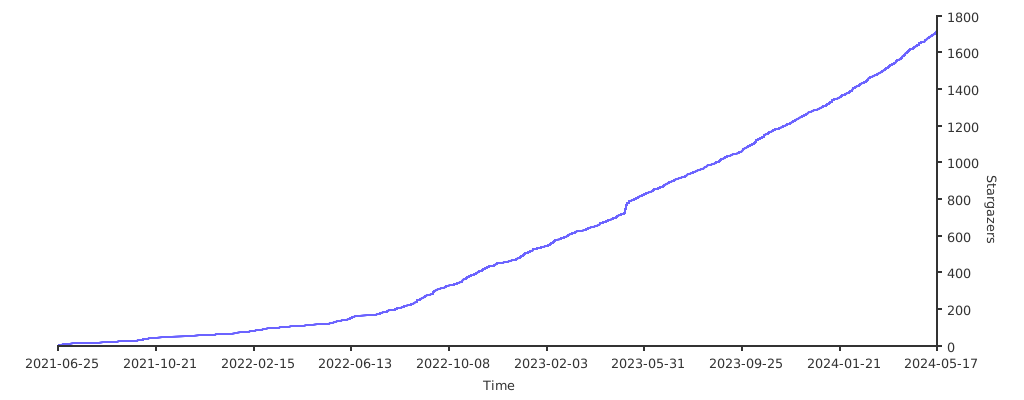](https://starchart.cc/awesome-windows11/windows11)
|